
Flashcards
When you make a card yourself, you already go through the topic once. In Oivallin you can make a card in four ways, and you can correct any of them later.
Four ways to make a card
-
From a conversation: Study, Homework and Test
Under every reply from the helper there is + Flashcard on all tabs: in Study, Homework and Test, and in an exam task given by the guardian. When you have answered a question in Study or Test, whether right, wrong or I don't know, Oivallin fills in the card with the question and the right answer. Cards are most useful for the things that went wrong or felt uncertain. You check it and save it. On the Homework tab you can make a card from an intermediate step where Oivallin helps, such as a rule, a concept or a method of calculation. You write that card yourself, because Oivallin doesn't fill in the answer to your homework.
-
Own card
Write a question and an answer. If you like, add a picture to the question or the answer and mark the part of the picture that is asked. You can make several cards from the same picture one after another.
-
Name the parts
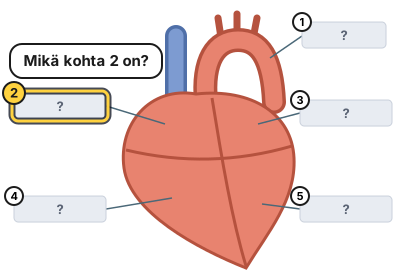
Take a photo of a textbook picture with labelled parts, such as a heart or a plant cell. Your phone finds the text in the picture, and you tap the labels you want to be asked. The labels are covered, and when reviewing you recall which part it is. It works without AI, and the picture doesn't leave your phone. Printed text is found well, handwriting and a tilted photo less well.
-
The AI makes the cards
Give 1–4 photos or a PDF of a textbook page, your notes or a vocabulary list, and say what kind of cards you want if you like. You get 5, 10 or 20 drafts. You check them before saving: nothing is saved on its own. The AI doesn't make answer cards from homework tasks; instead, Oivallin suggests that you solve the task on the Homework tab.
Correct and refine
A typo or a wrong answer? Correct the card straight from the review or from the area's card list. You can change or remove the picture, and you can delete unneeded cards in one go. Improve with the helper suggests clearer wording or an example, and you decide whether to use the suggestion. If a card doesn't make sense, Ask the helper to explain opens a conversation about it.
Review
Cards are grouped by area, for example Biology. Flip the card and say whether you remembered: Again, Hard or Easy. Hard cards come back soon, easy ones less and less often. Before a test you can review the whole area at once.
Pictures stay on your phone
A card's picture is saved only on the device. The server gets the card's text, a short description of the picture and the positions of the marked parts. That is why the picture shows only on the device where the card was made. On an iPhone, the home screen app and Safari are separate, so make picture cards in the one you use. There is more information in the app's privacy policy.
What it costs
| Feature | Uses the day's messages | Membership needed |
|---|---|---|
| Review, Own card, Name the parts, corrections | No | No |
| The AI makes the cards | One message per time | Membership or trial |
| Improve with the helper, Ask the helper to explain | One message | Membership or trial |
So flashcards and reviewing also work without a paid membership, for example for a guardian. Prices and the free trial